I hadn’t run Fedora in almost two years because of the way Flatpak was implemented, but now that this is no longer the case, I was willing to take another look. The install went as expected, and when it was finished, I rebooted.
Step 1: Update the System
After the first reboot, update Fedora to ensure all packages are current:
sudo dnf upgrade --refresh
sudo reboot
Step 2: Remove LibreOffice
Fedora ships with LibreOffice by default, but I prefer a leaner setup:
sudo dnf remove libreoffice*
sudo dnf autoremove
Step 3: Install NVIDIA Drivers
Before installing, I disabled Secure Boot to avoid driver signing issues. Then I enabled RPM Fusion repositories and installed the drivers:
sudo dnf install https://download1.rpmfusion.org/free/fedora/rpmfusion-free-release-$(rpm -E %fedora).noarch.rpm \
https://download1.rpmfusion.org/nonfree/fedora/rpmfusion-nonfree-release-$(rpm -E %fedora).noarch.rpm

sudo dnf install akmod-nvidia
sudo dnf install xorg-x11-drv-nvidia-cuda
sudo reboot
After rebooting, I verified the installation:
nvidia-smiOutput confirmed CUDA Version: 13.0, showing the drivers were working perfectly.
Step 4: Install asusctl
On my Zephyrus, battery management is critical. In the past, I used the GNOME “Battery Health Charging” extension, but now asusctl is superior for ASUS laptops. It integrates directly with the firmware and allows me to set a persistent battery charge limit.
Enable the COPR repository and install:
sudo dnf copr enable lukenukem/asus-linux
sudo dnf install asusctl asusd
Start the daemon:
sudo systemctl start asusdThen launch the GUI:
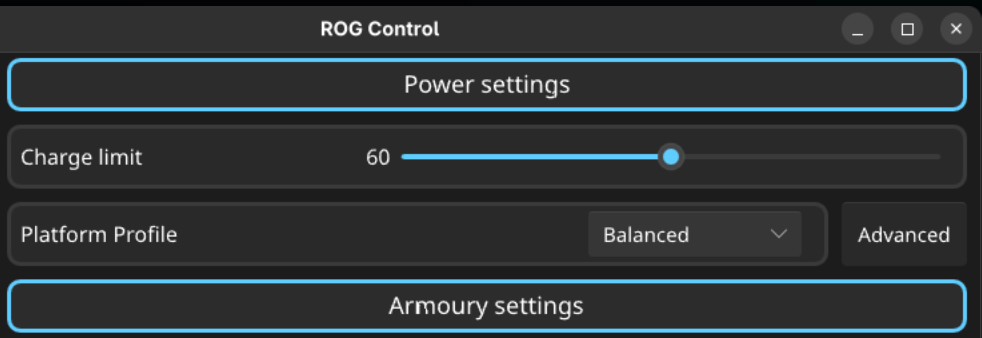
rog-control-centerFrom here, I set the battery charge limit to 60%, ensuring longevity without needing the GNOME extension.
Conclusion
With Fedora 43 freshly installed on my 2021 Zephyrus G15 laptop, the first steps remain clear:
- Update the system.
- Remove unnecessary packages.
- Install NVIDIA drivers (with Secure Boot disabled).
- Configure asusctl for battery management.
The result is a GPU‑ready Fedora setup with proper battery care, no GNOME extensions required. For a full review of the desktop experience and performance realities, see my follow‑up post: Fedora 43 on Zephyrus G15: Solid but Surprisingly Sluggish.